The most useful setup check is simple: can your chosen agent call the tools needed for your target? A successful package download is only part of that answer.
Before you start: this guide follows the official setup workflow checked on 27 October 2026. The screenshots show real version checks, a scoped setup dry run and static CLI analysis. We did not apply setup changes or claim a fresh editor connection. Output fields can change between releases.
Screenshots below capture actual REA 6.8.0 CLI output, rendered from recorded command stdout in xterm.js on 27 October 2026. Orange arrows sit in a separate margin. Where a source excerpt follows REA output, the caption identifies it. Expand any image to read the details. Download the commands, view requests and evidence, or read the command transcripts.
1. Check your runtime
Open your terminal and run:
node --version
npm --version
The current REA documentation requires Node 22.23.4+ within the 22.x line, 24.22.1+ within 24.x, or 26.12.1+. A major version by itself is not enough: Node 22.15 is below the documented floor. Use a supported release before troubleshooting MCP.
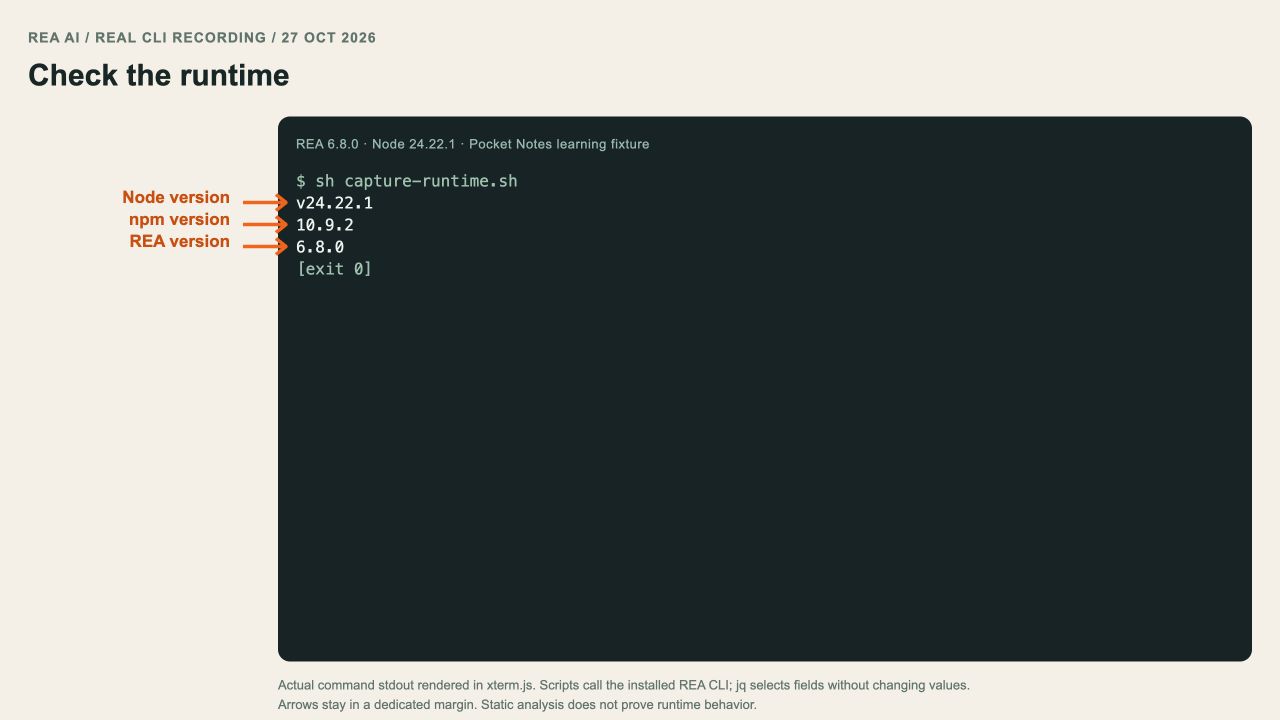
Real local version checks: Node 24.22.1, npm 10.9.2 and REA 6.8.0. Your installed versions may differ.
2. Preview what setup intends to change
Use the official package name, rea-agents. For a scoped, read-only preview, choose your client’s identifier. Here is the Codex example; the official client table lists the other identifiers.
npx -y rea-agents@latest setup --client codex --dry-run --jsonRead the proposed configuration paths and skill destinations. A dry run is not a completed connection. It lets you spot a wrong profile or unexpected destination before applying changes.
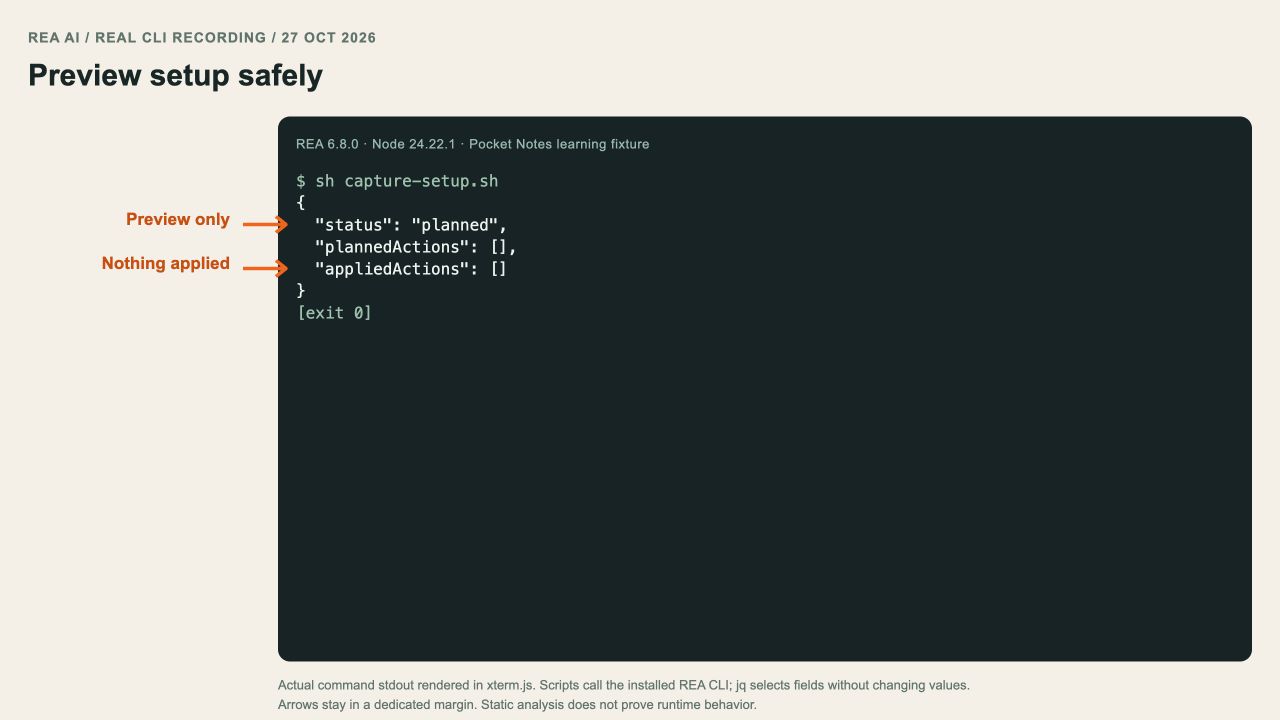
Actual scoped dry run on an already configured client: status planned, with no actions applied. This is not a newly installed connection.
For the interactive route, run the setup wizard and choose the agents you intend to use:
npx rea-agents@latest setupThe wizard presents its plan before writing changes. Review it, approve the changes you want, and fully restart the affected agent afterward. Native tools such as Hopper are a separate choice; a basic static JavaScript investigation does not require installing a native analysis engine.
3. Verify a small REA analysis
Extract the Pocket Notes fixture. Give REA the absolute path to that folder:
npx -y rea-agents@6.8.0 analyze-javascript-application /absolute/path/to/pocket-notes --jsonOur run parsed three JavaScript files and reported one preload entrypoint and one exposed API member. The screenshot uses jq to select a readable subset of the real result; the capture kit contains the exact command.
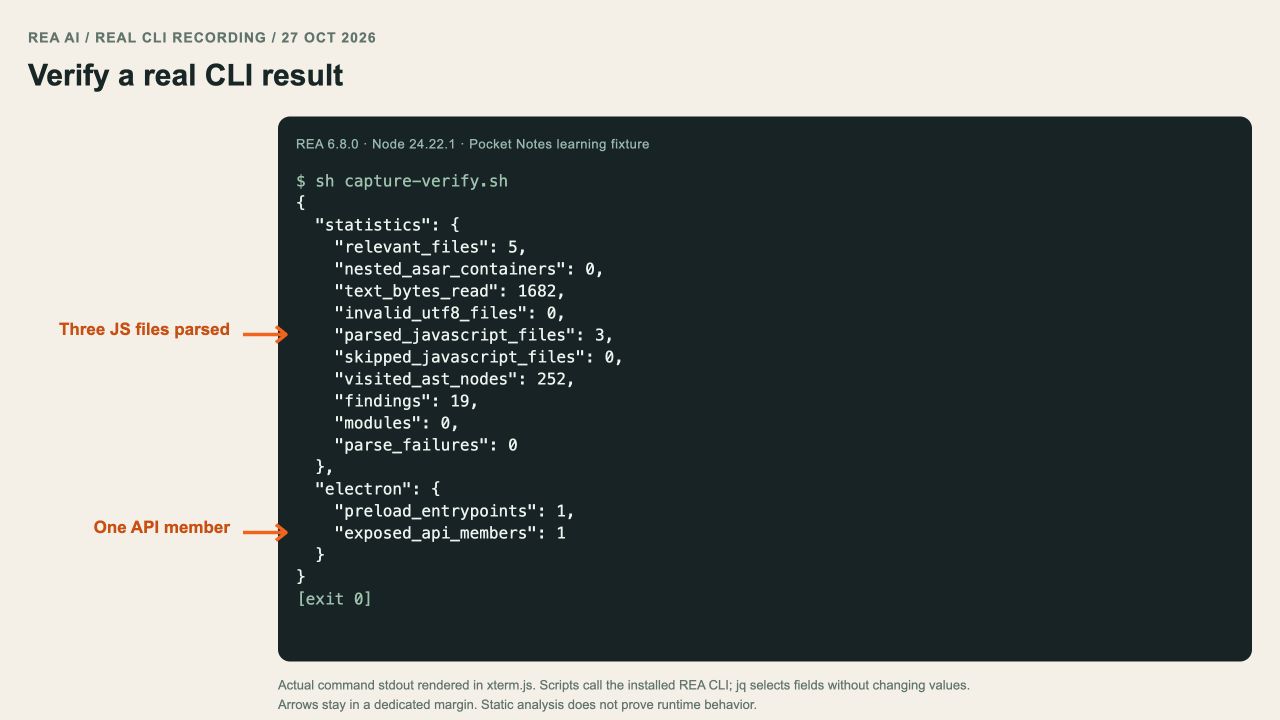
Actual REA CLI output from the learning fixture, with fields selected using jq. This verifies CLI analysis; check editor MCP separately below.
Check the connection inside your agent
After restarting your editor, check that REA’s tools are visible in that session. Then ask:
Use REA to inspect the Pocket Notes learning fixture as static JavaScript.
Report the preload bridge and IPC channel you find.
Do not launch the app or change its files.
A working terminal command does not establish an MCP connection. Confirm the agent can call the tool and return a result; we have not captured your editor doing that here.
If you only want to try the terminal
You can inspect an extracted JavaScript application without registering an MCP server:
npx -y rea-agents@latest analyze-javascript-application /absolute/path/to/app --jsonReplace the path with an actual extracted app directory or supported ASAR target. This route is useful for separating a package or runtime problem from an editor connection problem.
If the check fails
Start with the named failure. An unsupported Node version, a missing registration, and an unavailable native engine need different fixes. Do not keep reinstalling everything.
For one client, the official scoped diagnostic is:
npx -y rea-agents@latest doctor --client codex --jsonRead the failed scope, preserve the error output, and use our troubleshooting map. Once the tools are available, move to the first investigation rather than spending the afternoon configuring tools you do not need yet.