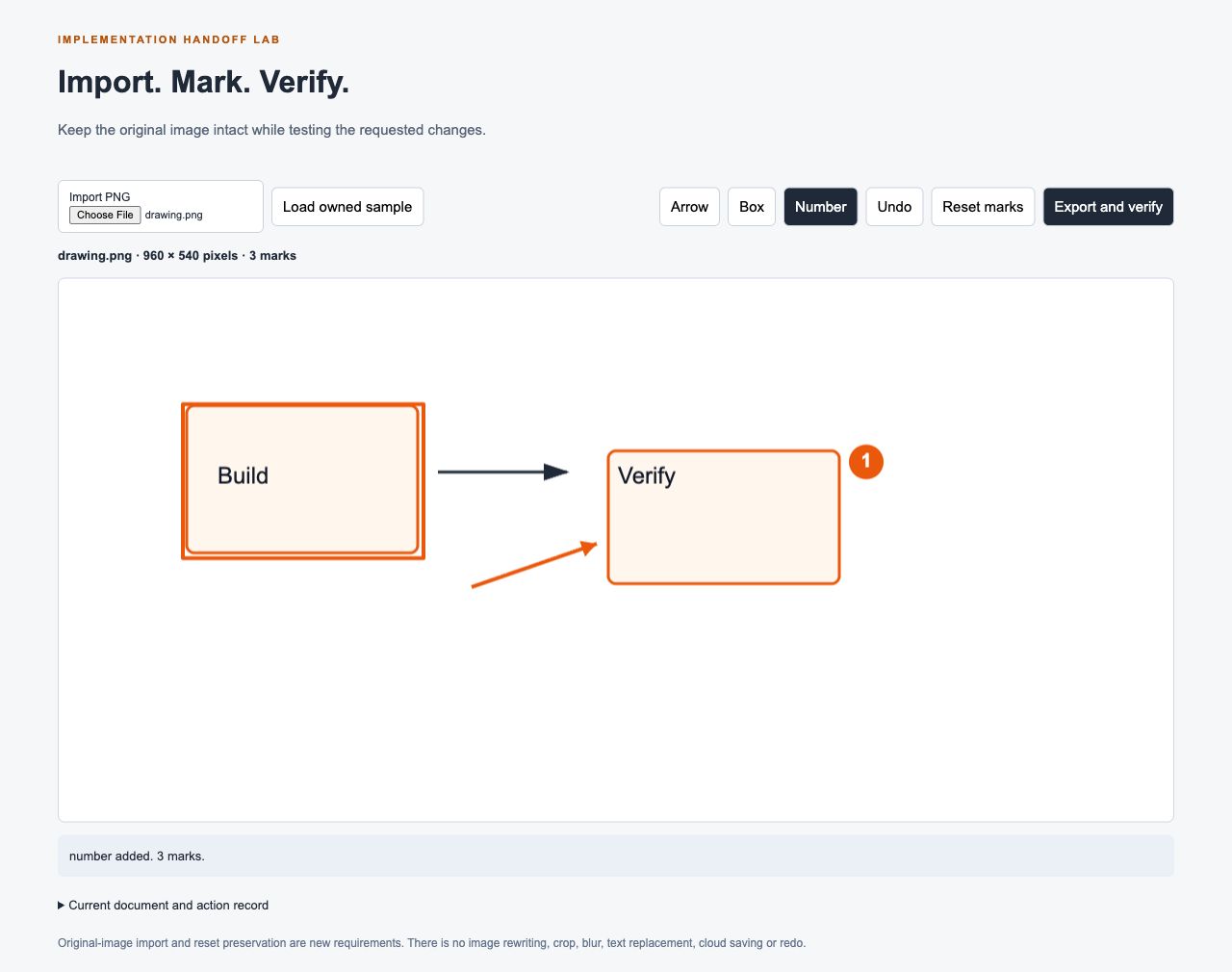
Give a builder a requirement they can prove: import your PNG, add an arrow, undo that arrow and export the image at its original size. This guide shows the brief, the resulting implementation and the checks that connect the two, so you can review behavior instead of judging a convincing toolbar.
The handoff started with our earlier annotation fixture, which used one fixed generated image. The new assignment was explicit: support an owned PNG, preserve it when marks are reset, and verify the exported file after reopening it. Import and reset preservation are new product decisions, not features claimed to have been recovered from another app.
Open the annotation lab or download the brief, app and test evidence. The app keeps your image as its base and draws annotation marks above it. It does not rewrite text, regenerate the image or replace its interface.
Follow the handoff
- 1. Turn the request into observable acceptance checks
- 2. Import a PNG and add marks through the interface
- 3. Test undo and reset against the imported image
- 4. Reopen the exported PNG before accepting the work
Before you begin
Use an image you own. The download contains an original drawing exported from our four-tool drawing lab, which makes a convenient controlled input. You can also import your own PNG.
For a local copy, extract the kit, open a terminal in its root folder and run:
node tools/annotation-handoff-v2/test.mjs
python3 -m http.server 4422 --bind 127.0.0.1 --directory public
Open http://127.0.0.1:4422/labs/annotation-handoff/. The first command runs the model checks; the second serves the app. If another process already uses that port, choose a free port and update the address.
The model set passed 12 checks for dimensions, coordinate mapping, mark handling, undo and reset. These checks are separate from importing a file and dragging in the browser. Keep both parts in your acceptance record.
1. Turn the request into observable acceptance checks
The actual implementation handoff asked for the following:
Enable importing an owned PNG, preserve its original dimensions, support arrow, box and number tools through pointer input, make undo remove only the last mark and harmless when empty, make reset preserve the imported image, and verify the exported PNG after reopening it.
That is enough to divide the work into reviewable outcomes:
| ID | User action | Acceptance check |
|---|---|---|
| A1 | Import an owned PNG | The displayed name and decoded dimensions match the chosen file |
| A2 | Draw on a displayed image | Stored coordinates are mapped into original image pixels |
| A3 | Add an arrow, box and number | Each gesture adds the intended mark without replacing the image |
| A4 | Undo, including on an empty history | Only the last mark disappears; empty undo does not fail |
| A5 | Reset marks | The imported image remains, at the same size, without marks |
| A6 | Export and reopen | PNG dimensions match the import; decoded channels match the annotated canvas |
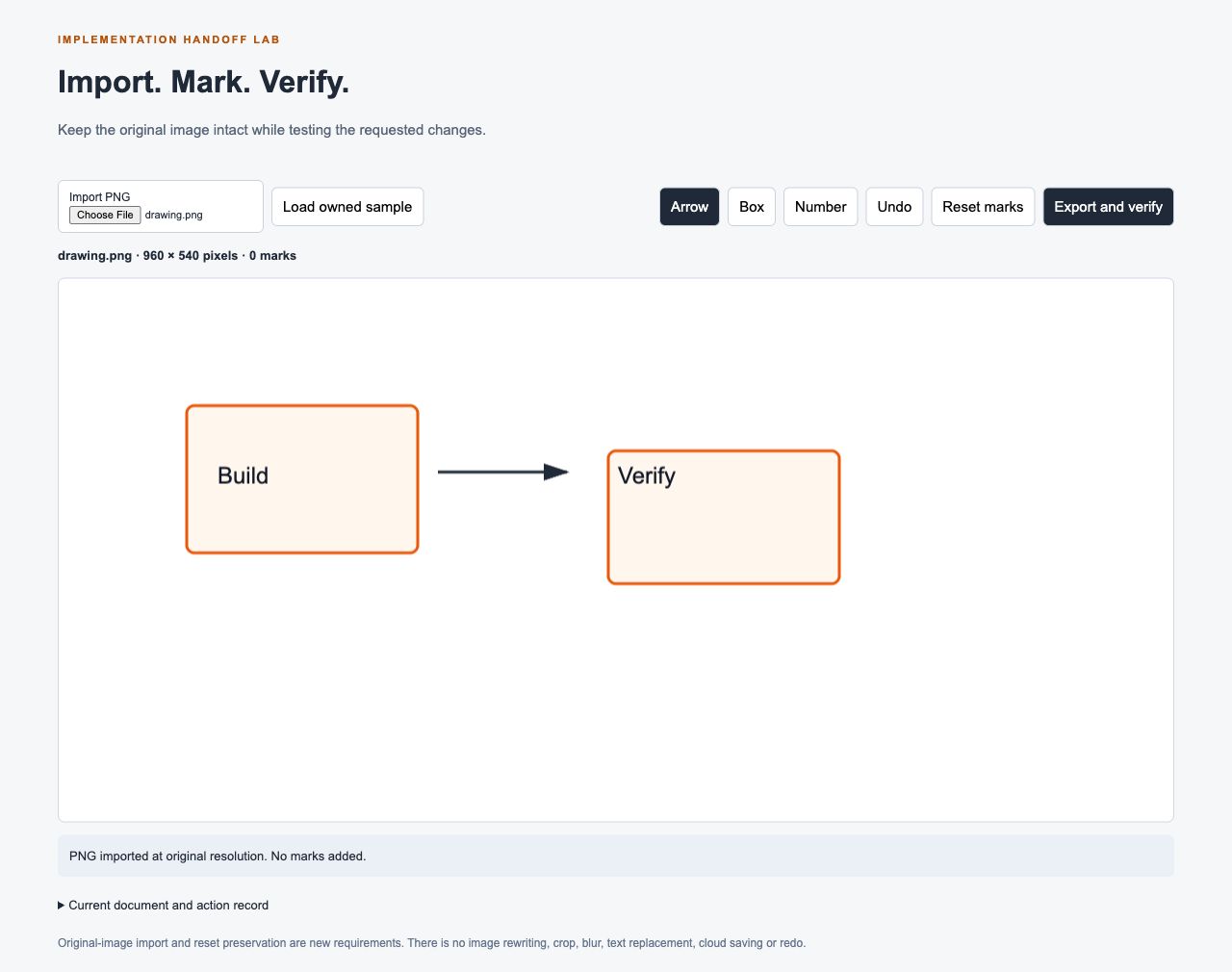
Focus: the file identity and dimensions. They are the baseline for the reset and export checks later in the guide.
The earlier fixture already had annotation and export concepts, but it created a fixed 640 × 400 base. Reviewing that implementation established the starting point. The handoff added file import and changed reset semantics deliberately. The download records those baseline observations and retains the earlier static REA summary separately.
Do not let a builder blend those categories. A requirement can come from inspected evidence, a user request or a new design choice. Labeling its origin prevents a useful new feature from becoming a false claim about what an investigation recovered.
2. Import a PNG and add marks through the interface
Use Import PNG to choose your file. The app checks the PNG signature, decodes the image and uses its original width and height for the drawing canvas. It rejects unsupported files and dimensions outside the example’s limit rather than silently resizing them.
Now choose Arrow and drag toward a visible feature. Choose Box and drag around a second area. Choose Number and click beside the part you want someone to review.
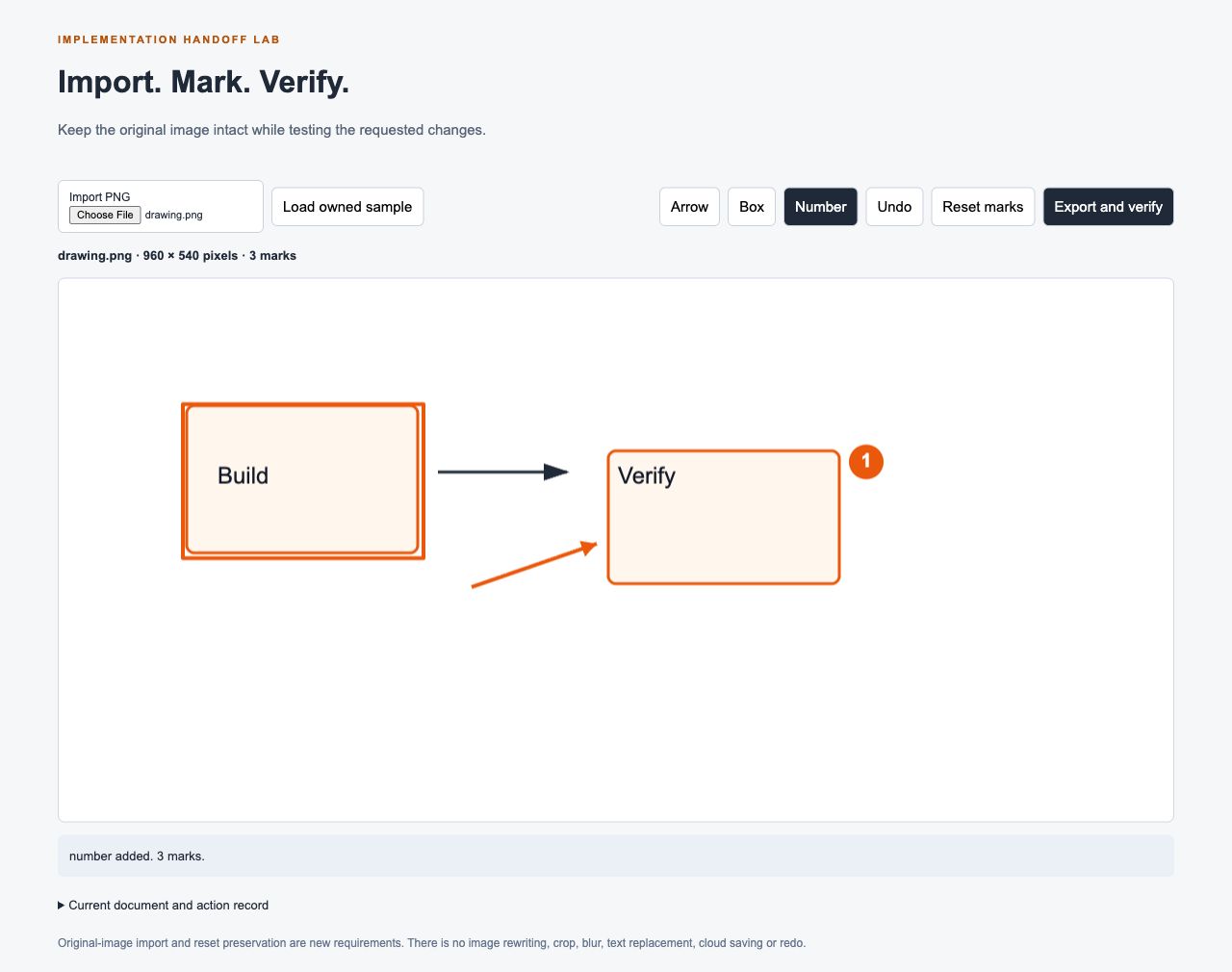
Focus: three distinct marks and an unchanged image size. Adding annotations should not change the document dimensions.
The app maps pointer positions from the canvas’s displayed rectangle to the image’s coordinate space. That distinction matters when a large image is displayed smaller than its actual resolution. A point halfway across a displayed image must remain halfway across its source canvas.
One model check verifies that a displayed position of (120, 90) on a 480 × 270 view maps to (240, 180) on a 960 × 540 image. That checks the calculation. The browser pass is still needed to verify that the event handler supplies the right coordinates.
Expand Current document and action record to inspect the stored marks and actual actions. Each annotation has its type and coordinates, so the review does not depend only on looking at a screenshot.
For the handoff, require the builder to explain where these responsibilities live:
model.mjskeeps document identity, dimensions and marks.app.mjshandles file decoding, pointer events, rendering and export.- The action record connects interface actions to the current document.
The source remains small enough to inspect. There is no need to add an account system, a media library or a cloud upload to test this request.
3. Test undo and reset against the imported image
After adding the three marks, click Undo once. The numbered marker should disappear while the arrow and box remain. Continue undoing until the mark count reaches zero, then click Undo again. The app should report that there is nothing to undo and preserve the image.
Add another mark and choose Reset marks. Reset should clear the annotation list while preserving the imported filename, width and height.
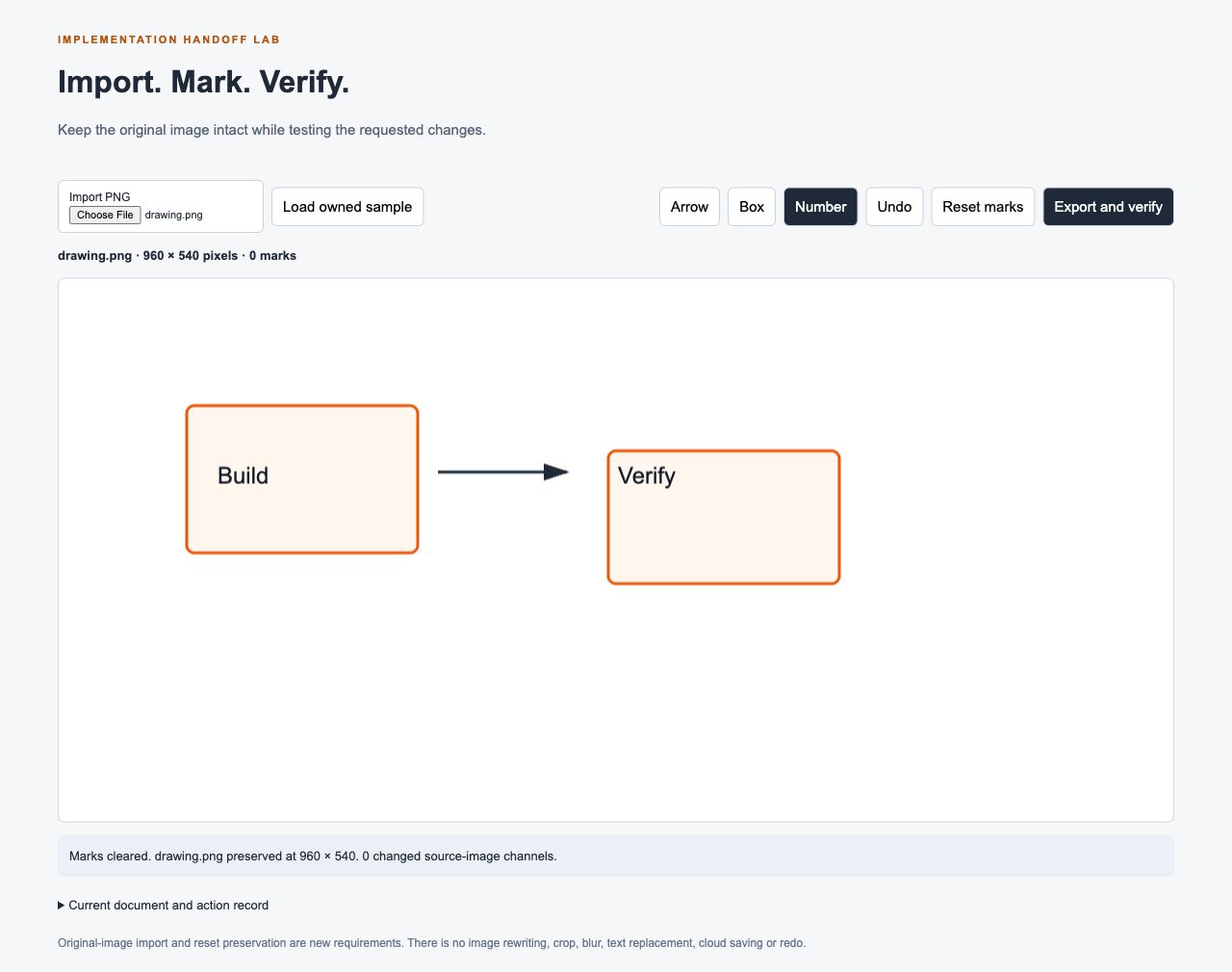
Focus: zero marks and the original filename. Resetting annotations is different from returning to a built-in sample image.
The reset action also compares the unmarked canvas with the imported base-image canvas. A result of 0 changed source-image channels supports the claim that clearing the marks restored that base in this run.
Keep the acceptance checks specific:
| Operation | What must remain unchanged |
|---|---|
| Undo one mark | Earlier marks and the imported image |
| Undo when empty | The whole document |
| Reset marks | File identity, original dimensions and base pixels |
The implementation has no redo stack or complete editing history. Undo removes the last annotation only. If your next requirement includes undoing imports, changing crop regions or restoring an older text edit, that is a new scope with new tests.
The findings verification guide provides a useful way to record a failure: expected behavior, actual behavior, supporting capture and the smallest correction needed.
4. Reopen the exported PNG before accepting the work
Add the marks you want to keep, then click Export and verify. The app encodes the current annotation canvas as PNG, decodes that PNG and compares its dimensions and RGBA channels with the canvas that produced it.
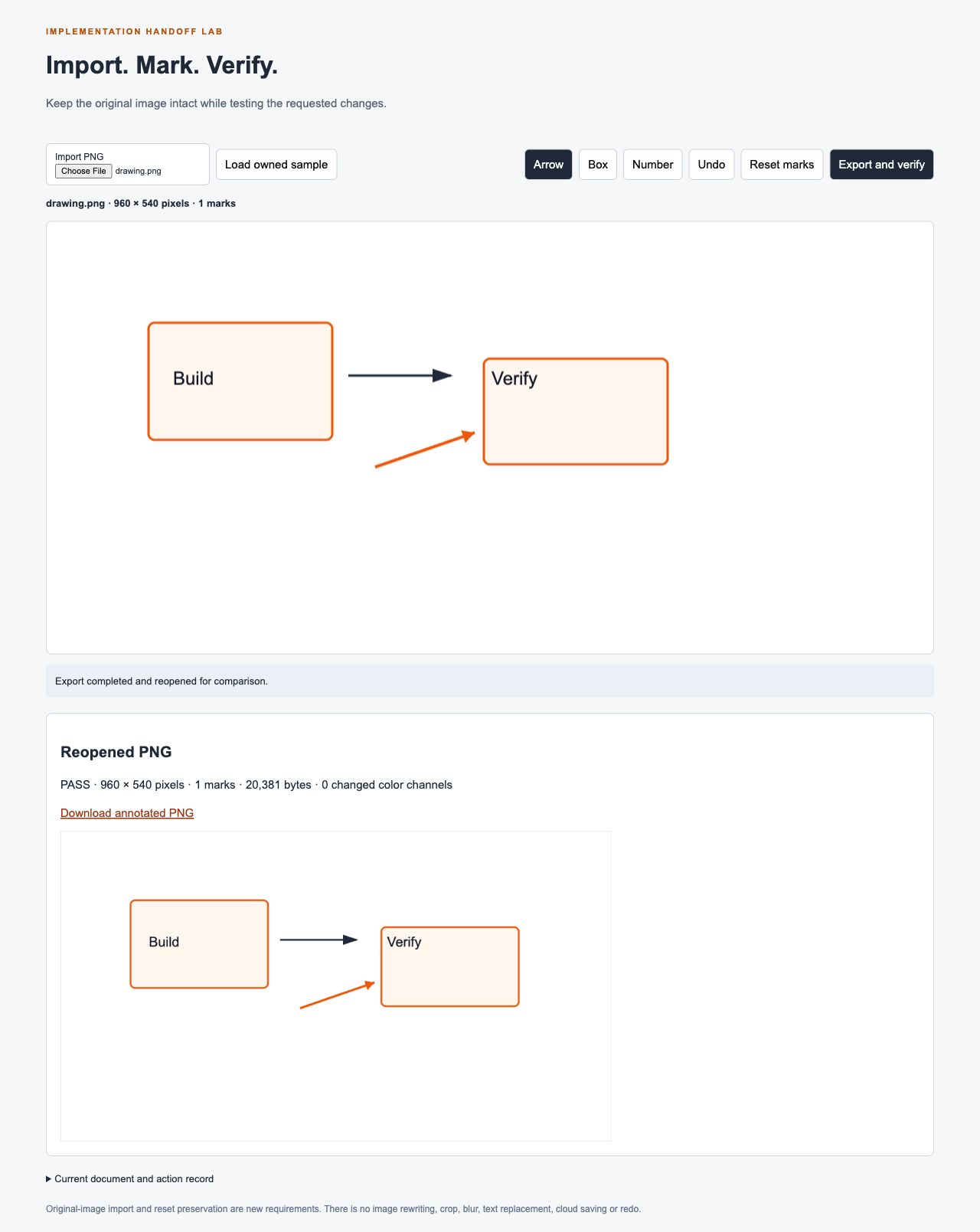
Focus: the dimensions and changed-channel count. The dimensions should match the imported image, and the decoded export should match the annotated canvas.
Our browser pass imported the original 960 × 540 image, added all three mark types, then confirmed undo removed only the last mark. Reset retained the image with 0 changed source-image channels. After adding a fresh arrow, export produced a 20,381-byte PNG; reopening it preserved its dimensions and matched the annotated canvas with 0 changed color channels.
Use Download annotated PNG to save the real file. A successful preview should not be your only evidence; keep the encoded file and the action record with the implementation brief.
There are two different pixel checks in this workflow:
- Reset check: compare the cleared canvas with the imported base image.
- Export check: compare the reopened PNG with the annotated encoding canvas.
An annotated export is expected to differ from the original image where marks were added. Requiring it to match the untouched source would make a correct annotation fail. Conversely, comparing only the export against itself would not prove that reset preserved the imported base.
Review the implementation against the brief
The handoff is complete when each requirement has evidence at the appropriate level. Source inspection explains the implementation. Model tests check isolated rules. Browser actions establish that the controls work together. The encoded image supplies an artifact you can open outside the app.
Use this review format for the next builder:
Requirement ID:
Requested behavior:
Evidence or editorial choice behind it:
Implementation files:
Model checks run:
Browser actions performed:
Observed result:
Saved output:
Remaining limitation:
For this example, the download includes the original brief, baseline observations and the 12-check model report. The browser action record and exported PNG document the acceptance pass separately. They do not establish touch-device support, every PNG encoding, cross-browser equivalence or a general image-editing system.
Once the handoff is accepted, keep the same requirement IDs when requesting a change. If a later export loses a box or reset replaces an imported image, you can point to A6 or A5 instead of reopening the whole design conversation. The REA prompt guide helps keep that follow-up request bounded and testable.