Find out whether a dictation prototype can recognize a known recording before spending time on shortcuts, a floating button or a transcript-history screen. A short speech file and a silent control expose problems that an attractive interface can hide.
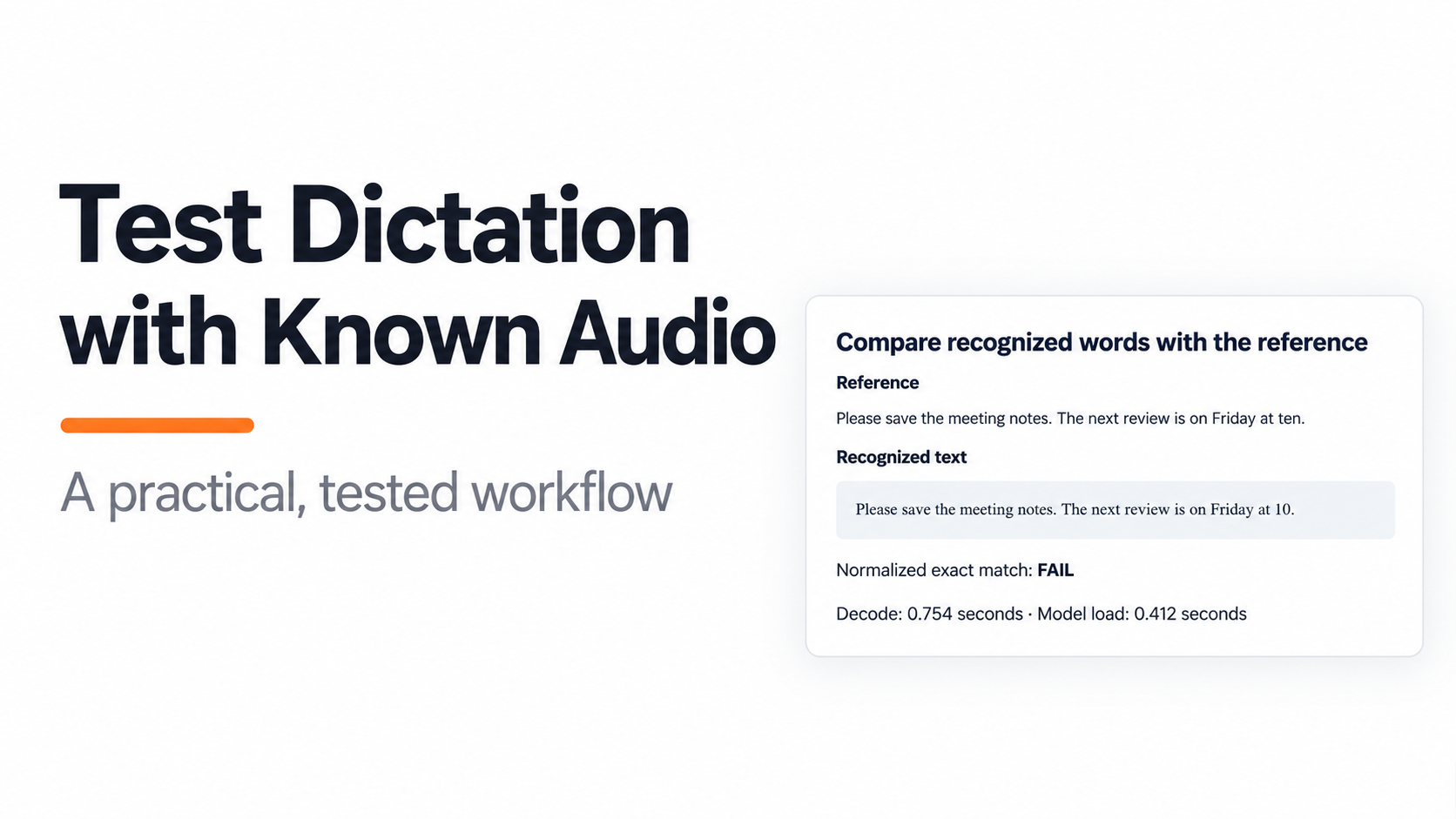
We tested an actual local recognizer with two audio files. It returned the spoken sentence with one formatting difference: “ten” became “10.” The strict text comparison failed, while the silent file correctly produced an empty transcript. Those results give us a concrete starting point for deciding what the application should accept.
This is a file-transcription exercise. It does not establish microphone capture, global shortcuts, speaker separation, meeting transcription or multilingual accuracy.
Follow the steps
- 1. Create a known input and a silent control
- 2. Run recognition and compare the words
- 3. Test silence before adding the interface
Get the tested workflow kit and open its audio folder. It contains the audio files, recognition output, test script and local reports. If you are beginning an investigation with REA, use the setup guide first. Keep an evidence note for each discovered behavior, then use this test sequence to check the audio path independently.
1. Create a known input and a silent control
Choose a sentence that includes ordinary words and one detail where formatting matters. Our reference was:
Please save the meeting notes. The next review is on Friday at ten.
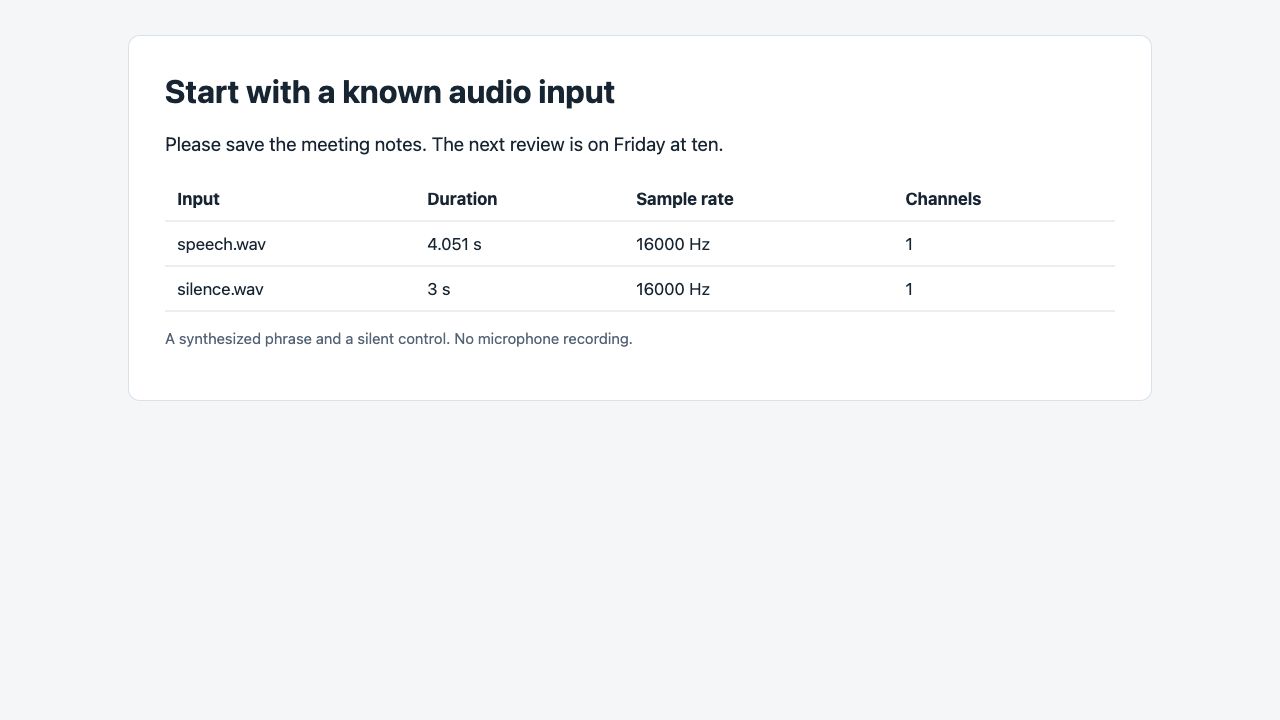
The speech file was generated with system speech synthesis and converted to mono PCM audio at 16,000 samples per second. It lasts 4.051 seconds. The control contains three seconds of zero-valued samples at the same sample rate.
Using a known recording makes repeat runs comparable. It also avoids testing speech recognition with text that was typed directly into the output field. A typed sentence can test editing and storage, but it cannot establish that the recognizer understood audio.
Check the input before recognition:
- Confirm the file exists and contains audio samples.
- Record its duration, sample rate and channel count.
- Keep the expected transcript beside the file.
- Give silence its own expected result: an empty string.
The kit retains file hashes so you can tell whether a later run used the same inputs. For a first comparison, change the recognizer setting or the audio file, not both at once.
A synthesized voice is useful for this controlled exercise because the words are known. It is not a substitute for a varied human-speech test set. Accents, background noise, overlapping speakers and microphone quality introduce different failure modes.
2. Run recognition and compare the words
We ran the installed whisper command’s Python package, version 20250625, with the cached tiny model on the CPU. The run used English, temperature zero and floating-point precision suitable for the CPU. No agent-model call was involved.
To reproduce with the same installed package and model, run the provided script from the audio folder:
python3 run_audio_tests.pyThe script also regenerates the silent control and small audio-rendering fixtures. Its recognition section writes results/dictation.json; it does not change your coding-agent configuration. If the package or model is missing, resolve that prerequisite before treating a failed launch as an audio-recognition failure.
Here is the actual result:
| Item | Observed value |
|---|---|
| Reference ending | Friday at ten. |
| Recognized ending | Friday at 10. |
| Speech duration | 4.051 seconds |
| Model load | 0.412 seconds |
| Speech decode | 0.754 seconds |
| Strict normalized text comparison | Failed |
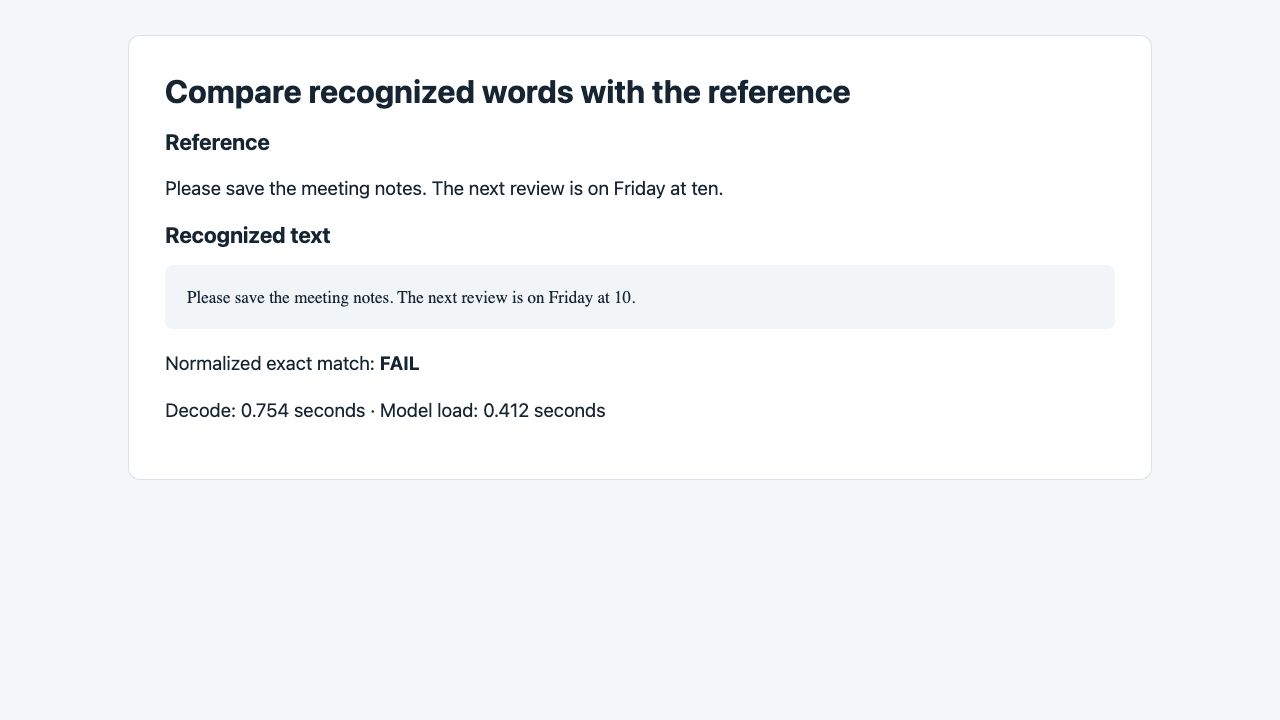
The comparison removes punctuation and ignores letter case. It deliberately does not convert written numbers into digits. That is why the result fails despite preserving the apparent meaning of this sentence.
Decide how your application should handle this difference. A search box may accept either representation. A verbatim transcription task may require the spoken number to remain a word. A form that expects a time should parse the value explicitly rather than relying on a text comparison.
Do not silently relax your test until it passes. Record the original failure, state the intended policy, then add a second check for that policy. For example, you could keep a strict transcript check and a separate semantic check for the scheduled day and hour.
The timing numbers are single-run observations from this machine. Model loading and decoding are separate measurements. They do not include microphone setup, upload, user interaction, meeting-length processing or model acquisition. Use them to understand this test, not to promise a universal response time.
3. Test silence before adding the interface
Run the same recognizer on the silent control. Our three-second file returned an empty transcript in 0.172 seconds, so the empty-output check passed.
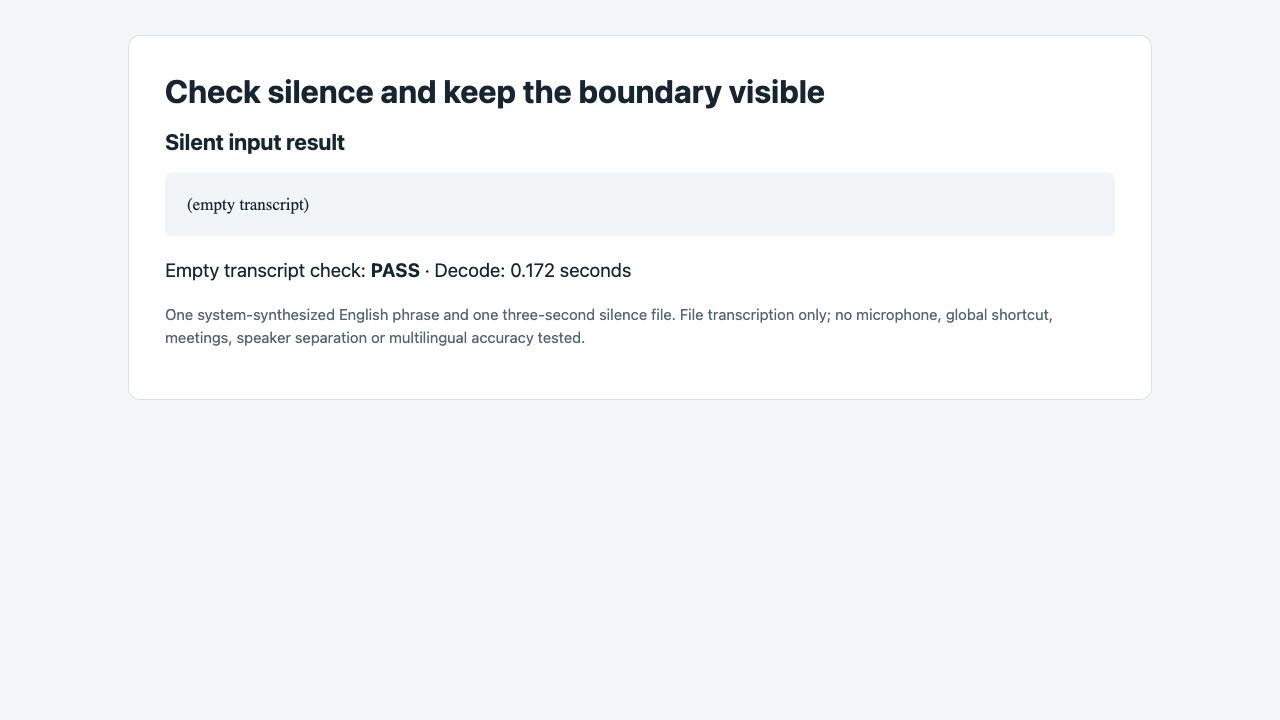
A silent input matters because the application needs a sensible response when the user records without speaking. An empty result should produce a clear “No speech detected” state or equivalent product behavior. It should not create a misleading history entry that appears to contain recognized speech.
Once this file path works, add interface requirements in small groups:
- Input handling: show an error for unsupported or unreadable files.
- Recognition state: distinguish waiting, processing, empty output and failure.
- Editing: let users correct the text before copying or saving it.
- History: test reload, deletion and duplicate handling separately.
- Recording: test permission refusal and stopping the microphone when finished.
Those are the next checks to run; they were not established by the two recognition cases here. Global shortcuts and native text insertion require their own platform-specific tests as well.
For a REA-assisted rebuild, keep this separation in the build brief. An observed shortcut handler can inform the design, but a working shortcut still needs a real activation test. A configuration value suggesting local inference does not establish that no network traffic occurs. The verification guide explains how to keep static findings and runtime results distinct.
You now have a useful minimum gate: the recognizer must process real audio, expose its exact output, handle silence and preserve the test record. Build the convenient interface around that measured behavior rather than using the interface as proof that dictation works.