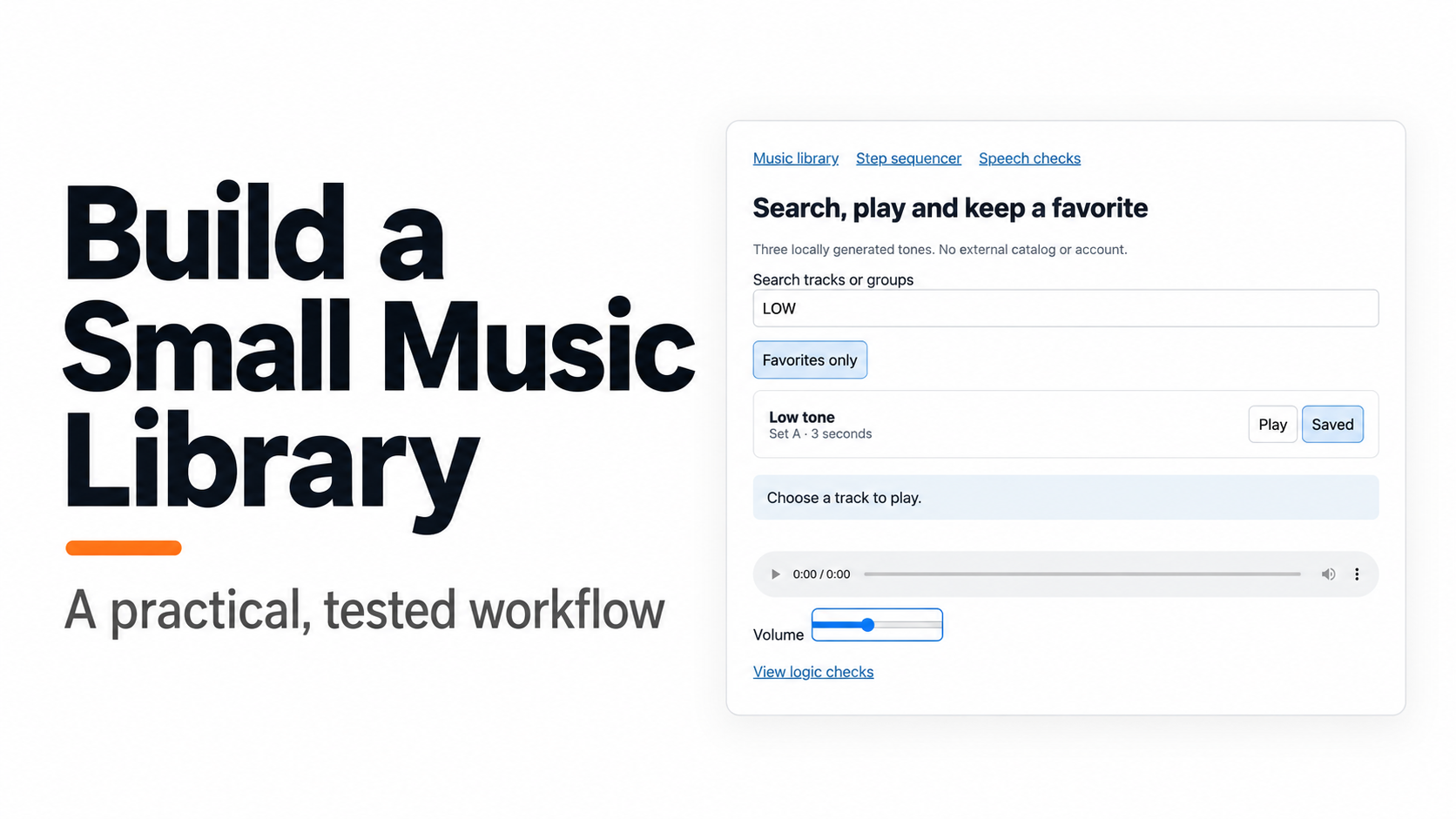
Test the parts of a music library that you can control: finding a track, playing its file and keeping a favorite after saving it. Three short owned audio files are enough to expose broken search and state handling without waiting for a catalog service or account integration.
Our small browser application uses generated tones rather than commercial recordings. We tested nine checks covering search, favorite toggling, saved-data decoding and audio-file structure. The downloadable app lets you follow the same workflow with an ordinary browser.
This exercise is a local library, not a streaming service. It has no external catalog, recommendations, accounts or remote synchronization.
Follow the steps
- 1. Define the catalog and inspect the data path
- 2. Test search and favorites as separate behaviors
- 3. Check saved state and the playback boundary
Download the tested workflow kit, open the audio folder and start a local server:
python3 -m http.server 4401 --bind 127.0.0.1Open http://127.0.0.1:4401/index.html?mode=library. Keep that address consistent while checking browser storage: a different host or port can give the page a different storage area.
1. Define the catalog and inspect the data path
Start with a catalog small enough to check by eye. Our three entries are Low tone, Middle tone and High tone. The first two belong to Set A; the third belongs to Set B. Each WAV file lasts three seconds.
Each record contains a stable ID, a display title, a group and an audio-file path. The ID is the value stored in favorites. Keeping display text separate from identity allows you to rename a title without losing a saved choice.
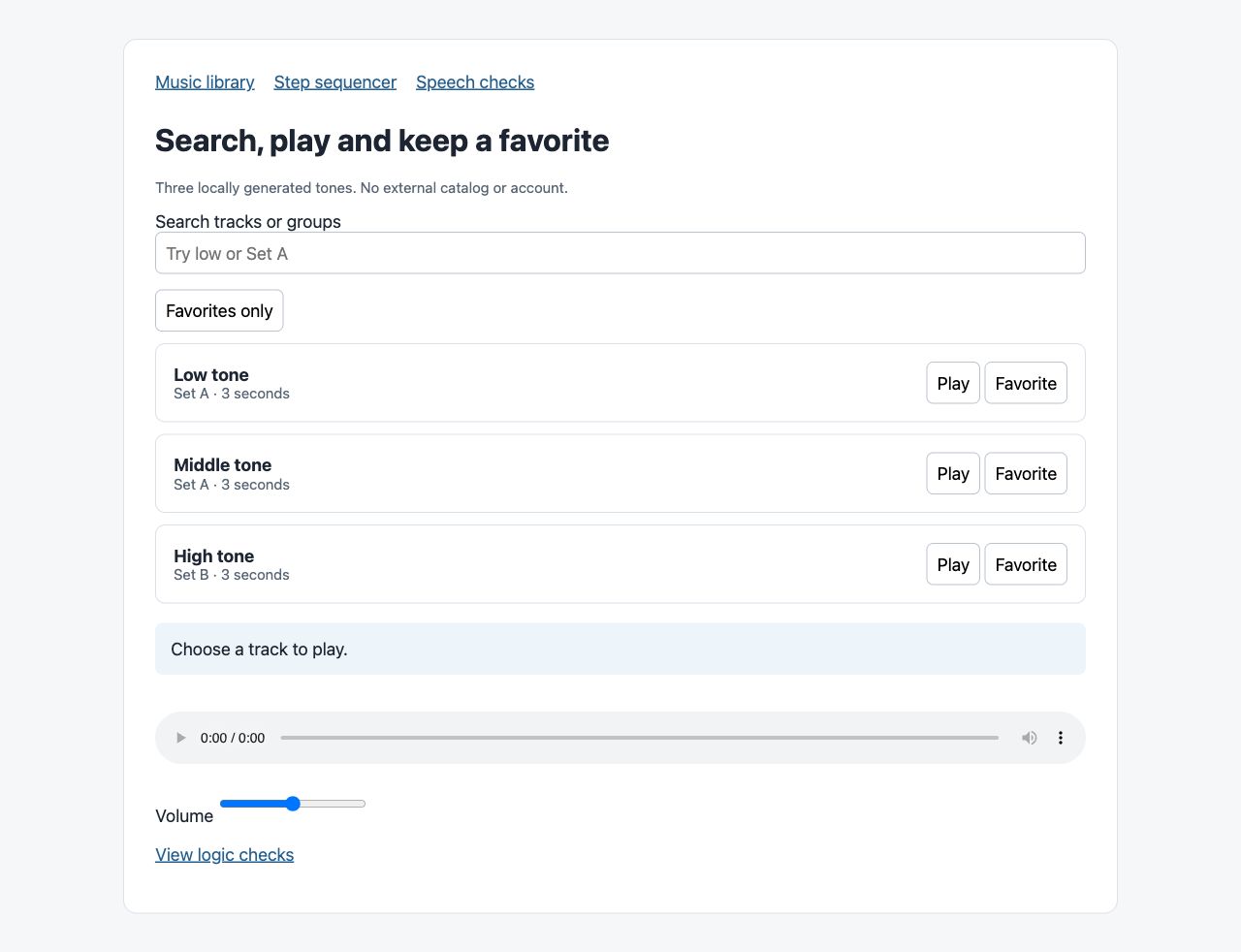
Before writing a build prompt, trace the small path you need:
- Where does the catalog come from?
- Which fields does search inspect?
- Does a favorite store a track ID or a whole copied record?
- What audio URL does the Play action assign?
- What happens when a stored ID no longer exists?
If REA is part of your investigation, ask it for evidence about these points instead of asking for a complete service recreation. Use the setup guide if the tools are not connected, and the prompt guide to keep the request bounded.
The kit includes a copy of the application’s delivered JavaScript for inspection. This is an original controlled application, not a blind recovery of an unknown product. Source inspection can establish intended paths; browser actions still need to establish actual behavior.
We also ran REA 6.8.0 against the delivered application files: three relevant files, two parsed JavaScript files and zero parse failures. The complete analysis is retained in the kit. It is static inspection, not a playback result. To repeat from the audio folder:
rea analyze-javascript-application "$PWD/artifact" --format json2. Test search and favorites as separate behaviors
Our search rule is deliberately simple: trim the query, convert it to lowercase, and look for that text in the track title or group. An empty query returns all three tracks. A query with no match returns an empty list and a visible message.
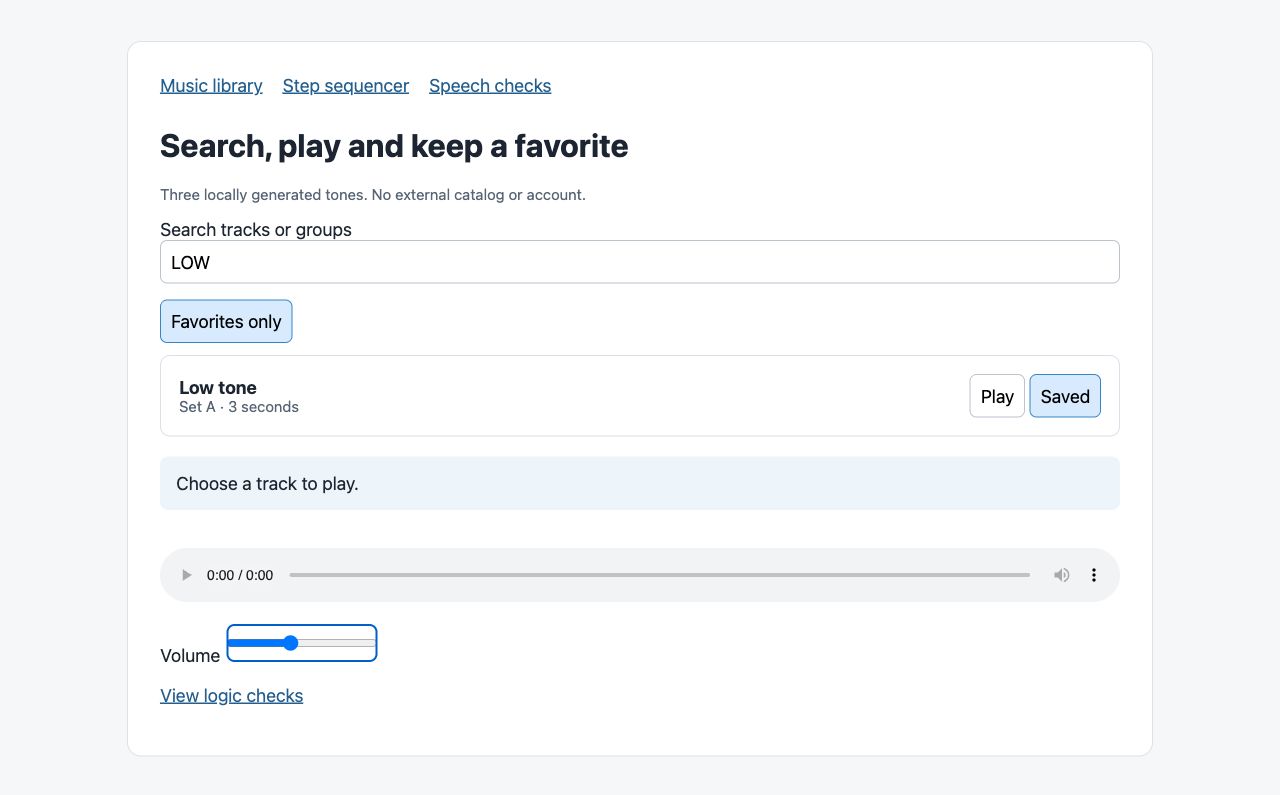
Type low to narrow the list to one track. Try LOW to check case and surrounding whitespace. Then search for Set A; two entries should appear. Finally, use a word absent from every title and group.
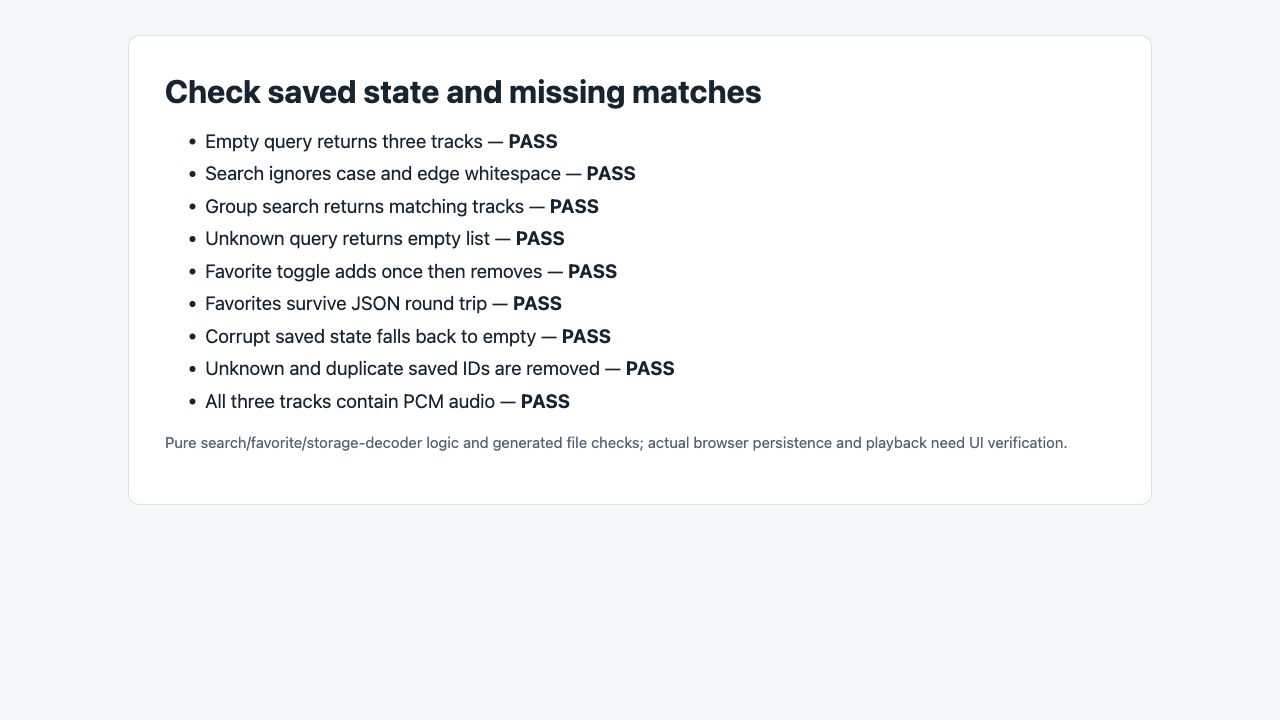
Run the retained logic checks from the same folder:
node test.mjsThe test imports the same search and favorite functions used by the browser interface. It checks results directly instead of deciding that a function works because a button is visible.
| Behavior | Checked expectation | Result |
|---|---|---|
| Empty search | Three entries | Passed |
| Case and outer whitespace | LOW finds Low tone |
Passed |
| Group search | Set A returns two entries | Passed |
| Missing term | Empty list | Passed |
| Favorite toggle | First action adds; second removes | Passed |
| JSON round trip | Two selected IDs are preserved | Passed |
Now test a favorite independently of search. Mark a track, clear the query and activate Favorites only. This avoids a common source of confusion: a correctly saved track can still be hidden by the current search filter.
The application stores IDs as JSON. That keeps the saved state small and allows the current catalog to remain the source of display details. It also creates an explicit question for the next step: what should the application do with old or damaged saved data?
3. Check saved state and the playback boundary
Reload the page after saving a favorite and inspect the result. Then remove the favorite and reload again. These browser actions test the storage integration; the earlier JSON check only tested encoding and decoding in memory.
Our decoder also has defensive behavior for two cases. Invalid JSON returns an empty list. Unknown IDs are discarded, and repeated IDs collapse to one saved choice. The corresponding tests passed.
In a separate browser run, Low tone decoded with a three-second duration and reached its ended state. Its favorite survived returning to the same page. Uppercase LOW and the favorites-only view each returned one track, a missing query returned none, and one left-arrow adjustment changed the player’s volume from 0.5 to 0.4. These observations are retained in audio/browser-observations.json. They establish player state and interactions, not a listening-quality assessment.
The ninth check confirms that all three referenced files exist and carry PCM WAV headers. That establishes a valid local file path and container structure. It does not, by itself, prove that a browser started playback or that a person heard sound.
Check playback through the actual interface:
- Press Play on a track and watch the playback position advance.
- Pause, resume and switch to another track.
- Move the volume control and confirm the player’s volume changes.
- Let the file end and check the completed state.
- Try an unavailable file in a disposable copy and check the error message.
Browser autoplay rules can make a play request fail until the user interacts with the page. A useful interface reports that failure rather than leaving a permanent “Playing” label. The demo catches a rejected play request and exposes a file-load error state; test those paths in your own browser before relying on them.
Keep the result log divided into logic tests, file checks and browser checks. That makes a failed reload easier to diagnose: you can distinguish a decoder bug from using a different browser origin or a blocked storage environment.
Once this small library behaves consistently, replace the generated tones with audio you control and expand the catalog. Add remote delivery only when you are ready to test loading delays, missing content and account rules. The findings verification guide provides a useful format for tracking those remaining checks without treating an attractive library screen as a completed service.