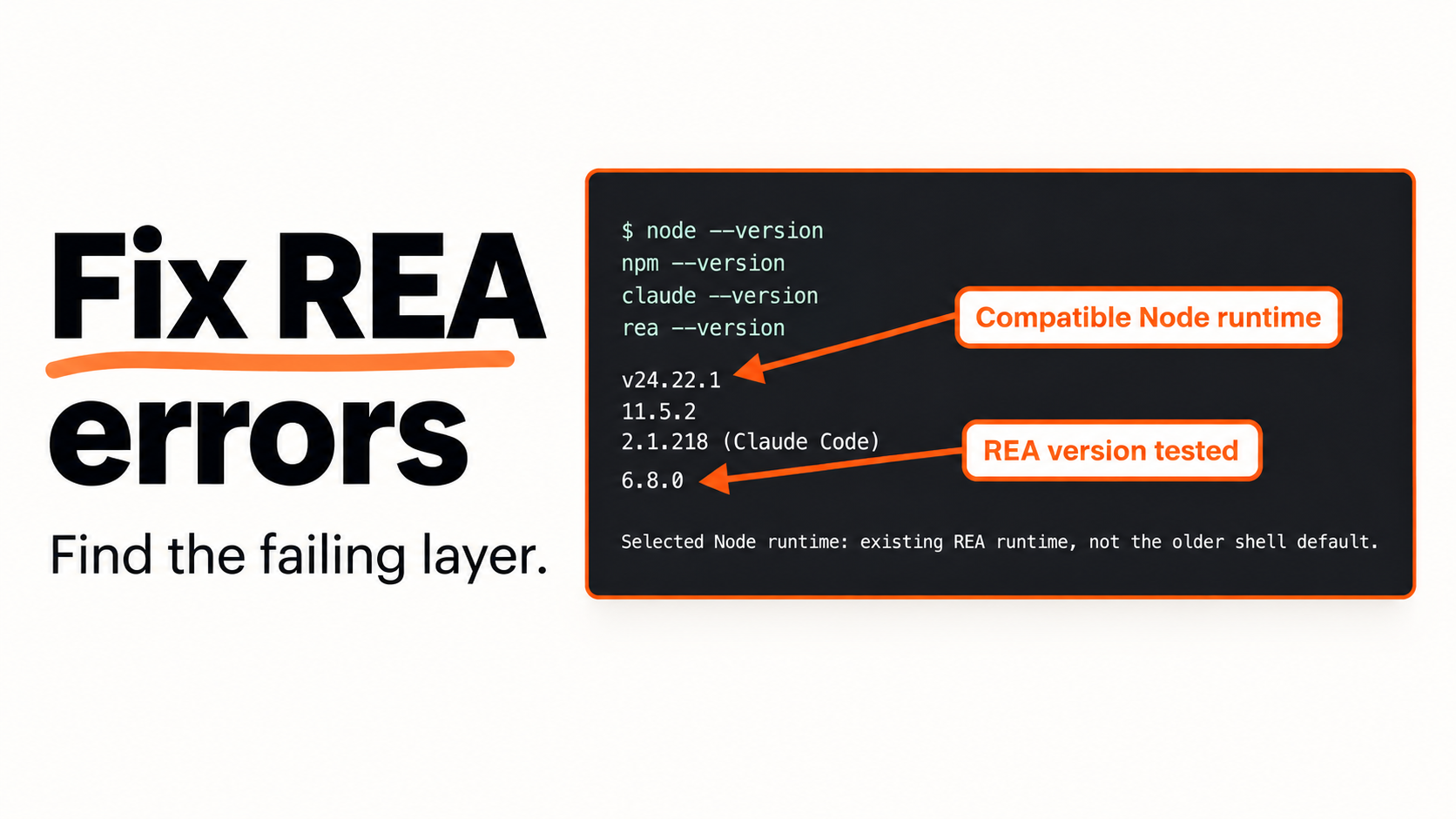
Find the failing layer before reinstalling REA. This guide helps you distinguish a missing command, a disconnected Claude server, and an invalid target—then repeat the smallest check that can confirm a repair. You can usually rule out unrelated tools before changing your configuration.
Start with the symptom table, follow the matching step, and keep the before-and-after output. The downloadable kit includes two controlled failures, their successful corrections, and the same small sample used for our analysis.
- Command will not launch: check the executable and runtime.
- Claude cannot connect: check the selected profile and server registration.
- REA connects but analysis fails: check the input and the requirements of that operation.
- Analysis succeeds but the explanation seems wrong: use the finding-verification guide.
Our diagnostic checks ran on macOS 26.6.2 with REA 6.8.0 and Node 24.22.1 on 31 October 2026. The PATH and missing-target examples below are deliberately reproduced failures. Client-connection evidence comes from the separate Claude Code setup walkthrough. Windows fixes and native-provider installation are not presented as locally tested recipes.
Jump to a step
- 1. Check the command before changing REA
- 2. Check the client and profile separately
- 3. Correct the input or identify the required provider
- 4. Retest the exact action and save the result
Choose your starting point
| What you see | Likely layer | First check | Continue at |
|---|---|---|---|
command not found: rea |
Shell command lookup | Check the executable location | Step 1 |
| A Node engine/version error | Runtime | Compare node --version with the current package requirements |
Step 1 |
| REA missing or disconnected in Claude | Profile or MCP launch | Run claude mcp list in the intended environment |
Step 2 |
| A model sign-in or usage error | Model account/provider | Read the client error; do not assume REA transport failed | Step 2 |
| Invalid input or missing directory | Analysis input | Confirm the actual target path | Step 3 |
| A tool-specific provider error | Analysis provider | Read that operation’s prerequisite and diagnostic | Step 3 |
1. Check the command before changing REA
Open the terminal used for your failing command and run:
command -v rea
node --version
npm --version
Keep the exact error. A shell that cannot find rea has not reached REA’s analysis tools yet. Installing Ghidra or changing the sample will not resolve that particular failure.
We reproduced it by limiting PATH for one child shell to /usr/bin:/bin. That shell returned exit code 127 and command not found: rea. Calling the already-installed REA executable by its absolute path then returned exit code 0 and version 6.8.0.
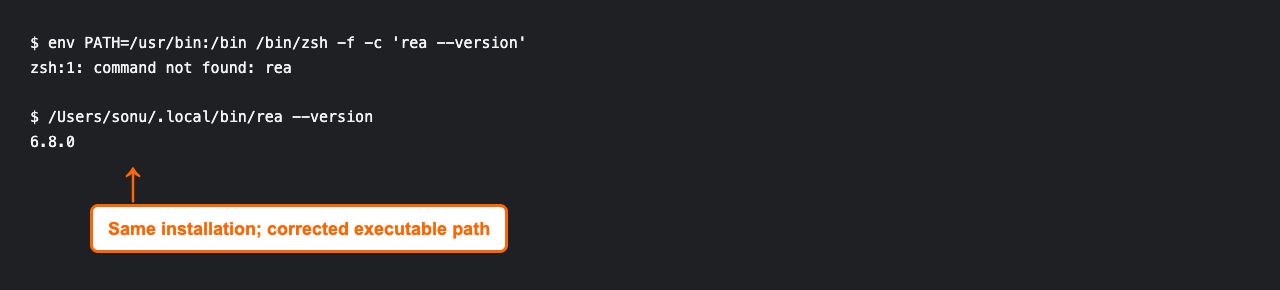
Only the test subprocess had a restricted PATH. The user’s normal PATH and client configuration were not changed.
On your machine, use the executable path you actually located; do not copy our machine-specific path. If you have not installed or configured REA yet, follow the setup guide instead of inventing a launch command.
If REA starts but rejects the runtime, check the current requirement:
npm view rea-agents version engines --jsonREA 6.8.0 declared ^22.23.4 || ^24.22.1 || >=26.12.1 when checked. A major version alone is insufficient: Node 22.15.0 falls below that range. After selecting a supported runtime, repeat the original command in the same environment. A successful version check establishes launch; it does not establish an MCP connection.
2. Check the client and profile separately
Once the command launches, check Claude Code’s configured servers:
claude mcp listIf you deliberately used CLAUDE_CONFIG_DIR during setup, keep that same selection for the check and for launching Claude. A server registered in a separate test profile does not automatically appear in your normal profile.
Our setup walkthrough used a new profile and obtained the connected result shown below. It verifies the CLI server-health check, not a model response or a completed investigation.
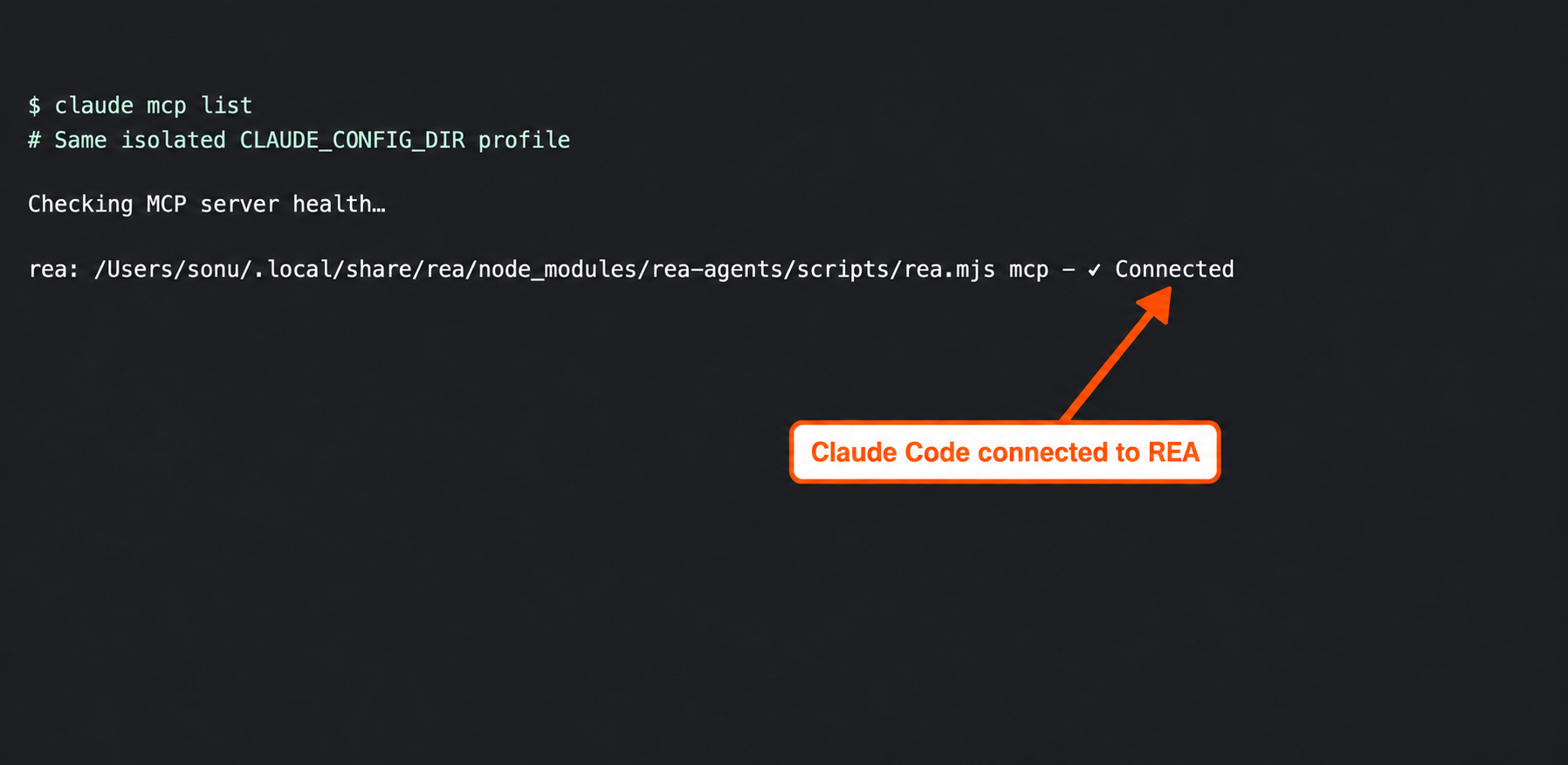
Connection check from the setup walkthrough. A live Claude analysis conversation was not captured in that test.
Use the next action that matches the result:
- Server absent: compare the intended profile with the setup plan and applied actions.
- Server disconnected: inspect its launch error, executable path and arguments.
- Server connected but Claude cannot answer: inspect the model/account error separately.
- Configuration changed: close the affected session, restart it, and repeat the check.
Inside Claude, /mcp provides the session’s server status. For scoped REA diagnostics, the documented command is:
npx -y rea-agents@latest doctor --client claude_code --jsonPreserve your profile selection when running it. Read the affected check rather than treating every warning as a reason to reinstall everything. In our setup test, the selected Claude scope was healthy while optional analysis engines were absent. The later JavaScript analysis still succeeded.
3. Correct the input or identify the required provider
A working connection can still receive a bad request. To demonstrate that distinction, we passed REA a directory that did not exist. It returned invalid_request, category invalid_input, retryable: false, and an ENOENT explanation identifying the missing path.
The correction was to provide the existing, stable Pocket Notes directory. The same analysis operation then completed successfully.
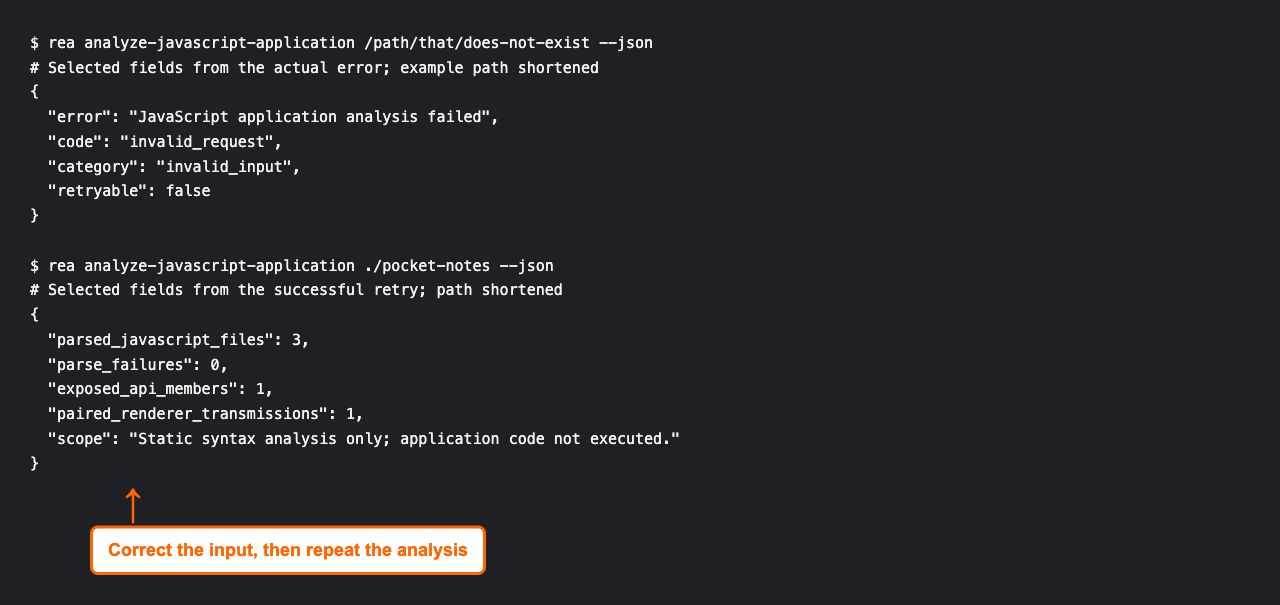
Controlled input failure and correction. No package reinstall or permission change was needed.
Download and extract the diagnostic and verification kit, then supply your absolute fixture path:
npx -y rea-agents@6.8.0 analyze-javascript-application /absolute/path/to/pocket-notes --jsonThis pins the version used in our example. Confirm the folder exists before running it, and avoid editing or syncing its contents during analysis.
If your own target fails while the sample works, compare their inputs and required operations. Do not conclude that every target is supported because one JavaScript fixture passed. Use the target-selection guide to identify the appropriate workflow.
Native analysis can require a provider that this JavaScript example does not use. Read the prerequisite named by the failing operation; the native-tool guide helps separate those choices. Repeating an unchanged invalid request or raising every timeout does not supply missing artifacts or tools.
4. Retest the exact action and save the result
Repeat the failed command after making one relevant correction. Then run the same small analysis that you intend to rely on. A connection badge and an analysis response answer different questions.
Our corrected fixture run parsed three JavaScript files, reported zero parse failures, and found one paired renderer transmission. The earlier setup walkthrough produced the equivalent small-analysis checkpoint pictured here.
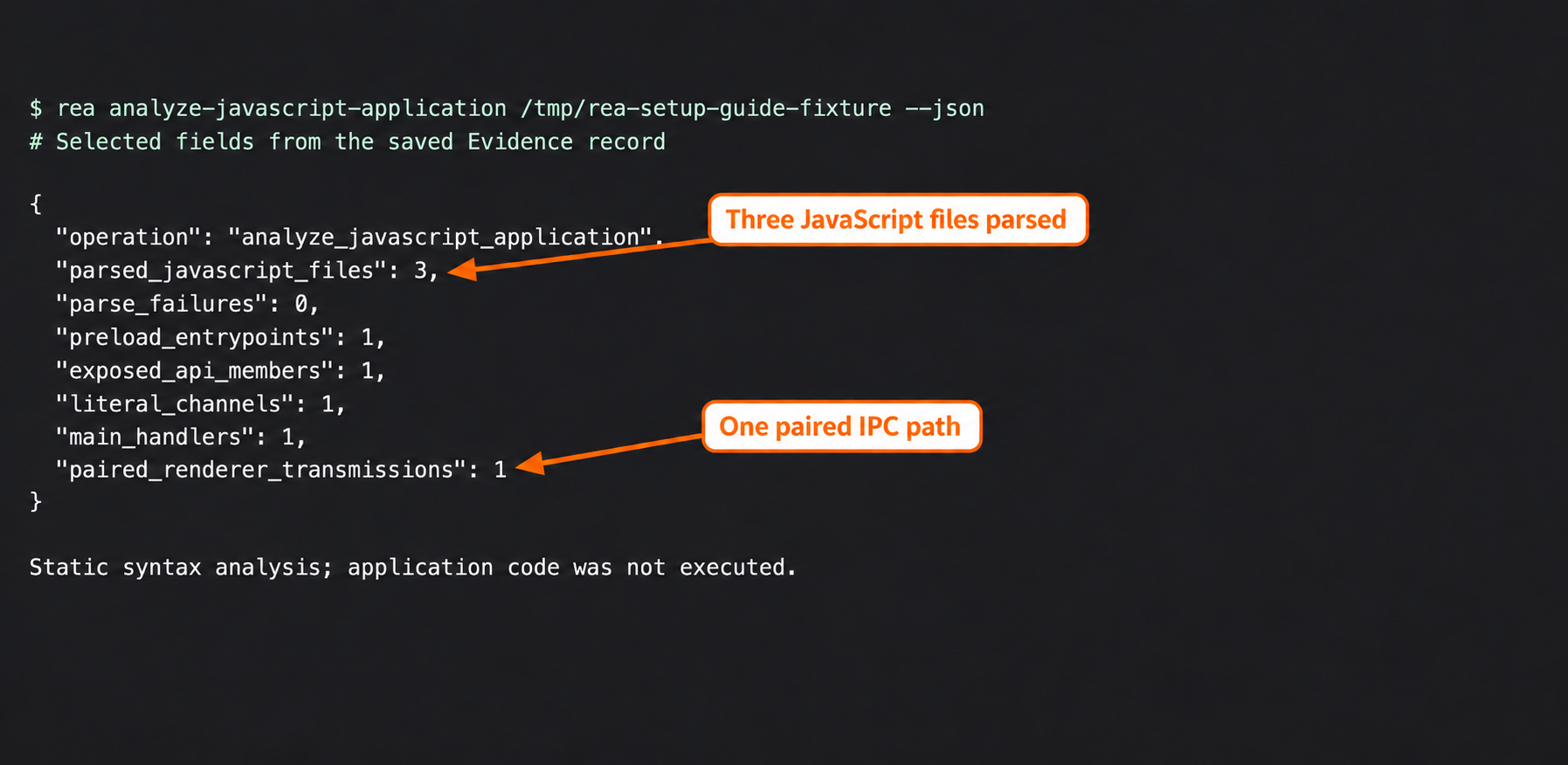
Static analysis from the setup walkthrough. It did not execute the Electron application.
Record five things before returning to the larger task:
- The original command and exact error.
- The target and tool versions.
- The single change you made.
- The repeated command and observed result.
- Any behavior or provider still untested.
The worksheet download gives you a reusable issue-report format. Include a small permitted sample when reporting a problem; remove credentials and unrelated private data from logs.
Research flow and next steps
The symptom-first structure also reflects The Code Street’s Windows setup report, which separates launch issues from subsequent VS Code analysis. Its Windows/REA 6.7.0 instructions are an author report, not the commands tested here.
For current configuration details, consult REA installation documentation and Claude Code’s MCP guide. Once the failing layer is resolved, use a scoped investigation prompt and verify one finding before expanding the task.